We empathize with the challenges of managing and tracking leaves and rescheduling tasks. With WorkForce Kit, this burden is lifted off your shoulders. Our solution ensures meticulous leave tracking, facilitating seamless rescheduling of tasks and enhancing overall productivity.
How to book your leaves
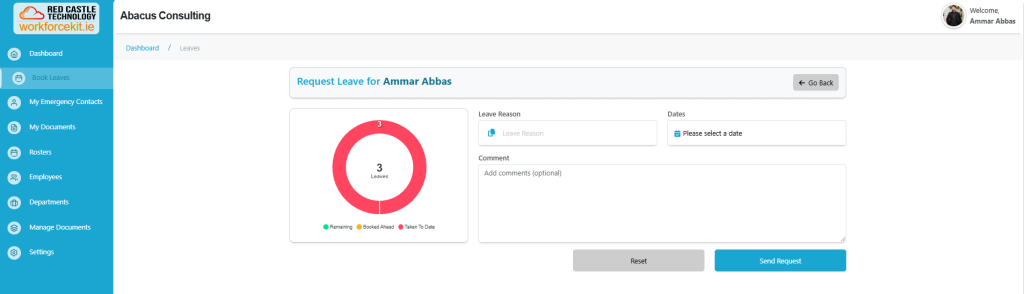
To initiate the leave booking process, click on the “Book Leave” button located in the top-left corner of the page. This action will redirect you to a dedicated page where you can input all requisite details for your leave request.
On this page, you’ll have the opportunity to specify the following information:
• Leave Reason: Please enter a concise explanation for your leave, providing necessary context for your request.
• Dates: Kindly specify the precise starting and ending dates of your leave to ensure accuracy in scheduling.
• Comment: Feel free to include any additional remarks or pertinent information relevant to your leave request.
After the manager or administrator reviews the request, they will proceed to approve or reject it. Upon approval or rejection, an email notification will be dispatched to the employee, notifying them of the status change. If approved, the leave status will be updated to “approved,” and if rejected, it will be updated accordingly.
Additionally, managers or administrators can book leave on behalf of an employee who is unable to report to work due to an emergency situation. They can accomplish this by selecting the employee’s name and then clicking on the “Book Leave” option.
Time Off History Section
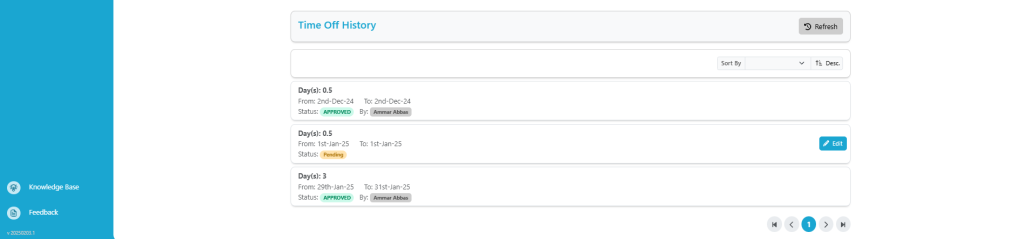
Within the “Leave” tab, you can access a comprehensive overview of an employee’s leave balances and their leave usage history.
Below are some of the characteristics:
Total Days: Display the total number of leaves that each employee has availed for accurate record-keeping and monitoring.
From Date: Display the “From Date” of leaves to provide comprehensive information regarding the start date of each leave.
To Date: Display the “To Date” of leaves to provide comprehensive information regarding the duration of each leave.
Status: Display the status of leaves as either “Approved” or “Cancelled” for clear visibility and tracking.
By: The approval of requests by administrators or managers is accompanied by a clear indication of which admin or manager has given the approval within the system.