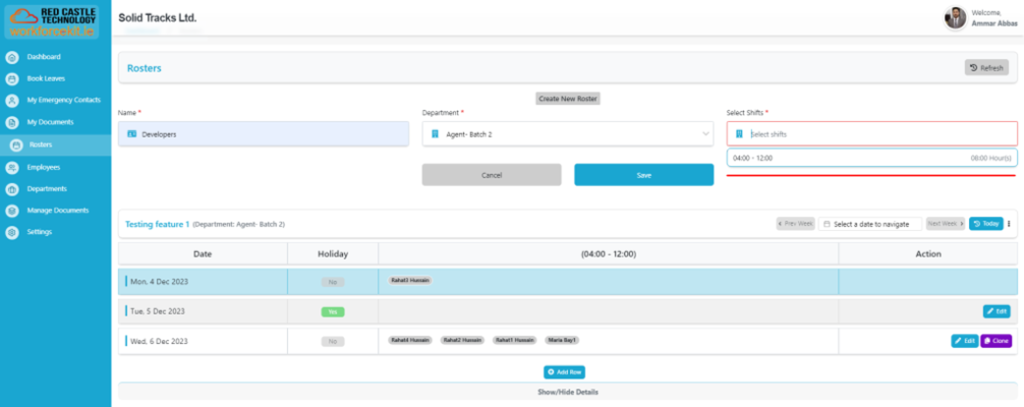
Within this section, users can effortlessly establish rosters by initiating the process with a simple click on the “Create” button, ensuring a streamlined and professional approach to roster management.

Users are required to input a “Name” for the roster, select the relevant “Department” from the activated options in the dropdown menu, and assign applicable “Shifts” that have been added to the respective departments. This systematic approach ensures professionalism and precision in roster management.
Please take note that the available “Shifts” will only appear if they have been previously added to the selected Department. Once all the required information has been accurately provided, users can complete the process by
clicking on the “Save” button, finalizing the creation of a new roster. This method ensures a professional and well-structured approach to roster management.
Now that we have successfully created a roster, let’s proceed to the next phase, where we will guide you through the process of adding employees to this roster in a professional and efficient manner.
Adding Employees in Roster
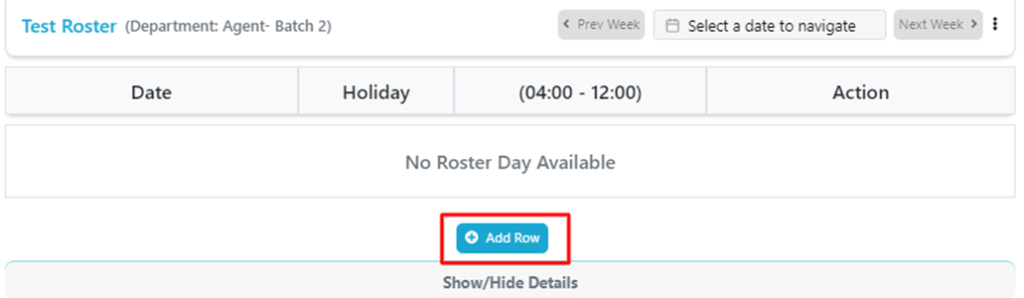
To initiate the employee addition process, users should start by selecting the “Add Row” button, ensuring a professional and organized approach to roster management.
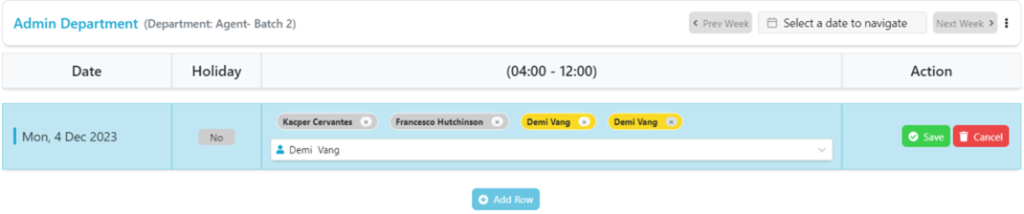
In this step, users have the opportunity to view and manage the roster details efficiently. Here’s the process:
- Roster Date: You can readily view the roster date for reference.
- Mark as Holiday: In the second section, you can designate specific entries as holidays, ensuring precise scheduling.
- Select Employees: In the third section, you can choose the employees for the roster. To maintain accuracy, the system will automatically highlight any duplicate selections in yellow, helping you avoid errors.
After meticulously filling in all the necessary details, simply click the “Save” button to preserve the entire roster, ensuring a professional and well-organized approach to roster management.
The roster has been successfully saved. However, an alert will be displayed to notify the user of any duplicate entries for a more professional and error-free roster management experience.
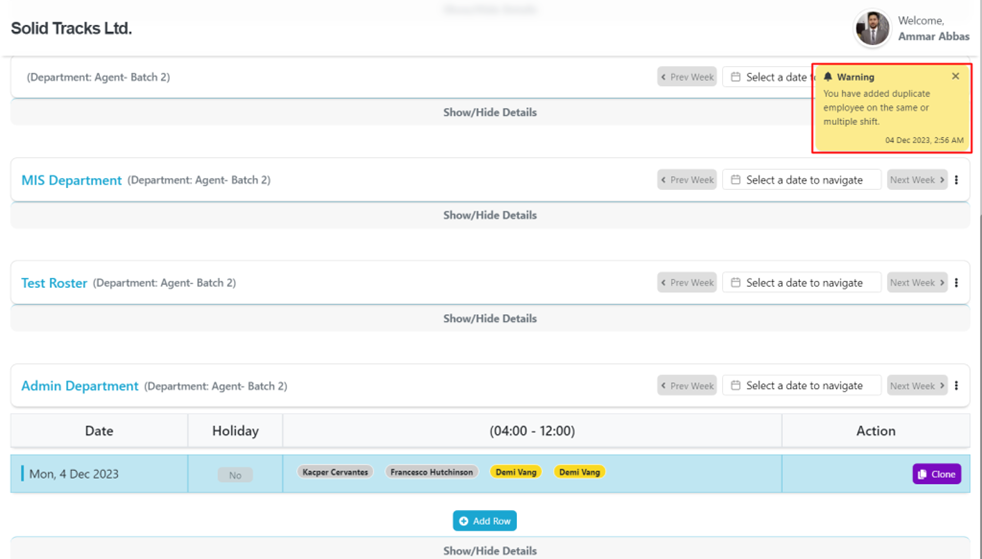
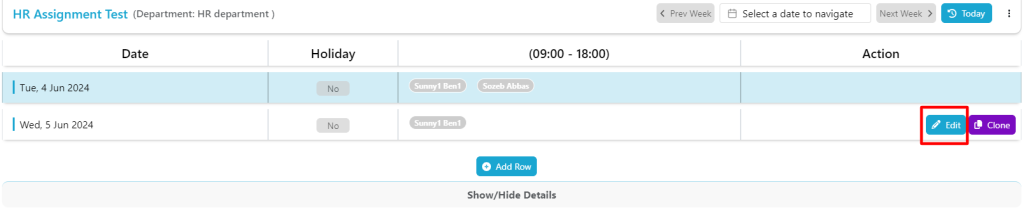
For added convenience and efficiency, users have the option to clone an existing entry by simply clicking on the “Clone” button, enhancing the professional and time-saving aspects of roster management.
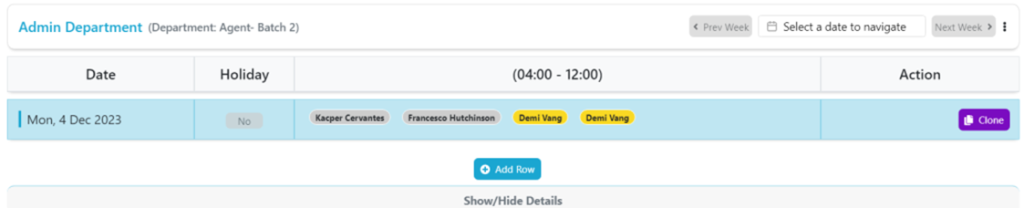
Furthermore, users retain the ability to edit the same roster by selecting the “Edit” button. Within this capability, you can make adjustments such as adding or removing employees and modifying the “Holiday” status. This functionality enhances the professional and flexible aspects of roster management, ensuring adaptability as business needs evolve.