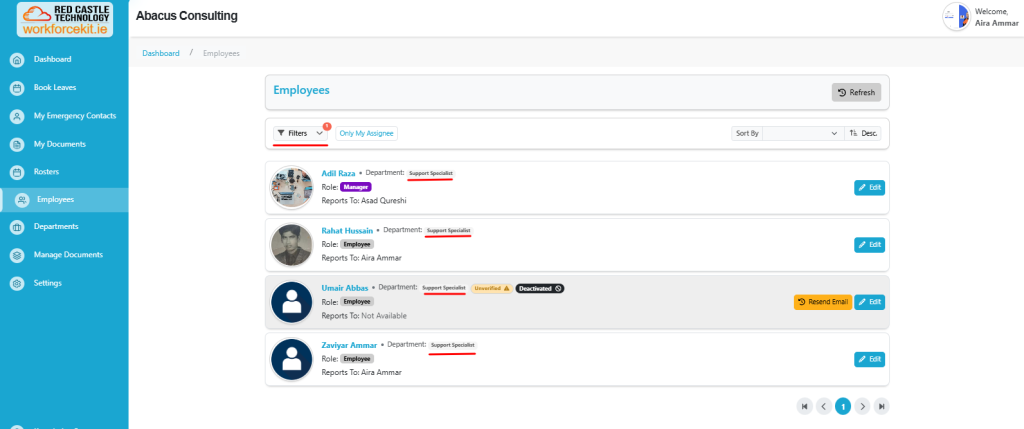
This section provides a comprehensive overview of the various departments and their associated personnel. Below are the key details presented on the initial page:
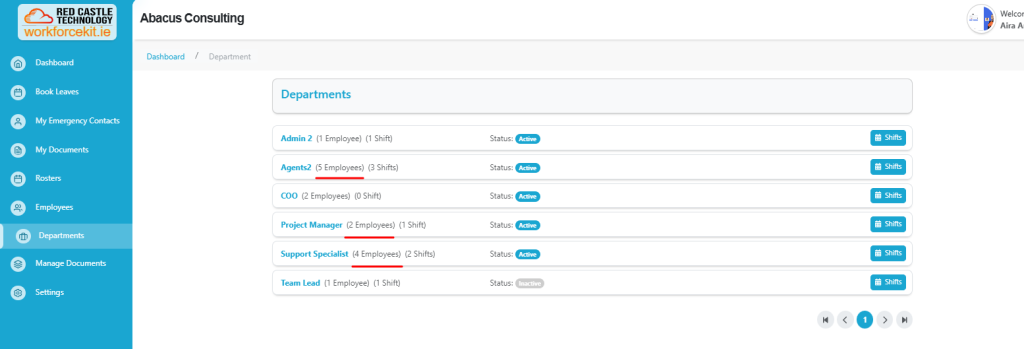
- Name: Displays the name of each department.
- Number of Employees: Indicates the count of employees within each department.
- When a user clicks on “Employee,” the system should redirect them to the “Employees” page, automatically filtering the results to display only the individuals associated with the selected department.
- Shift: Reveals the count of shifts within each department.
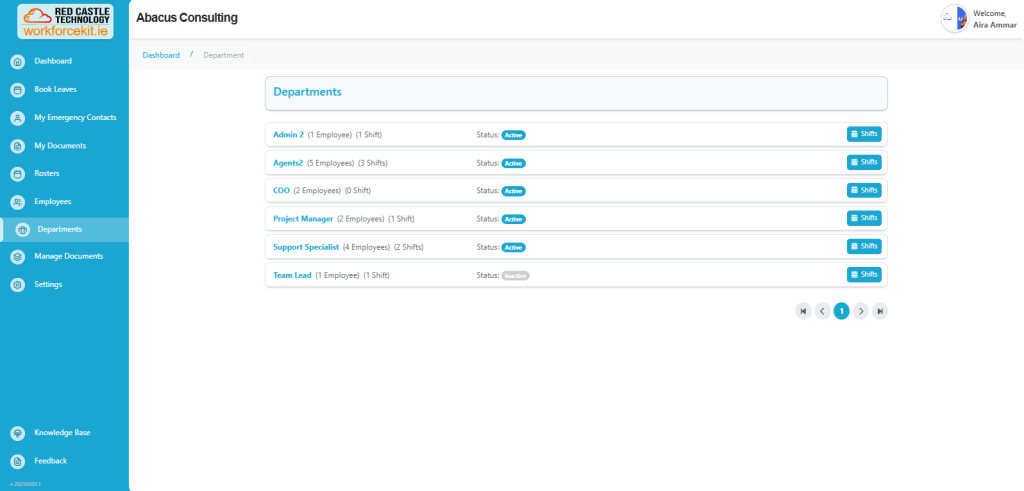
- If the shift count is displayed as zero and the user clicks on it, they should have the option to create a new shift for the department.
- Status: Distinguishes between active and inactive departments.
This structured presentation offers a clear understanding of the organisational layout and workforce distribution, facilitating efficient management and decision-making processes.
Note: Managers does not have access to Add the Departments or mark them “Active” or “Inactivate” as well.
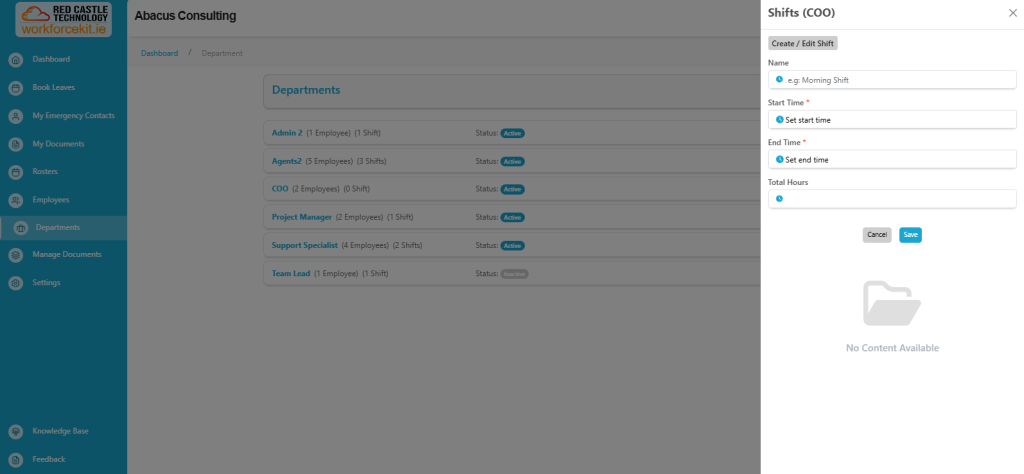
Adding a Shift
Within this modal, users have the capability to seamlessly create a “New Shift,” by simply clicking on the “Shifts” button for streamlining the process for professional and efficient workforce management.
Upon selecting the “New Shift” button, users are prompted to define the “Shift Name“, “Start Time” and “End Time” for the new shift. To create the shift, simply confirm your selection by clicking on the “Save” button. The system will automatically calculate the “Total Hours“, ensuring precise and efficient shift management.
Shift Management Options
Users are provided with access to both “Edit” and “Delete” functionalities for existing shifts.
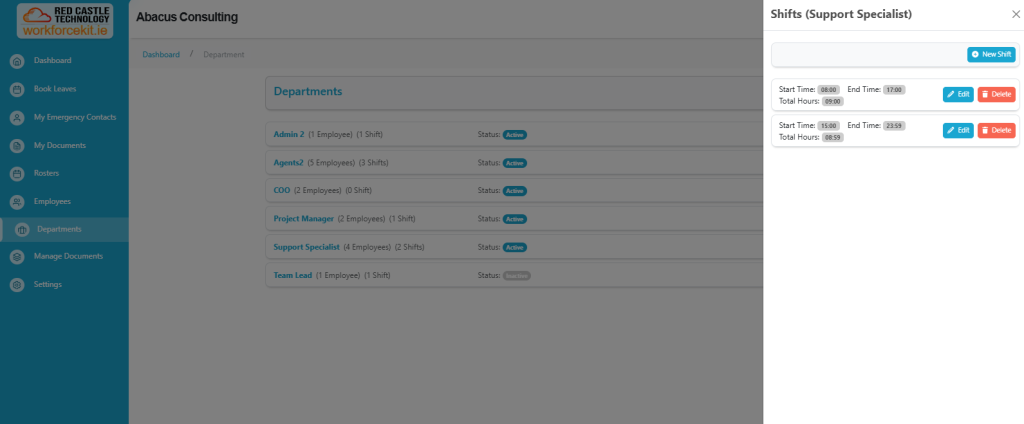
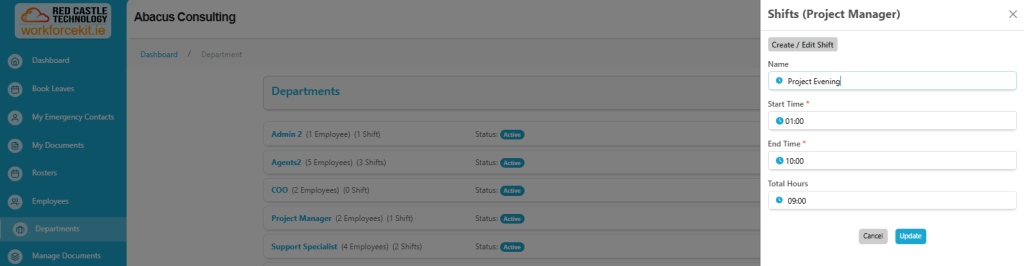
When the user clicks the “Edit” button, they can modify the Shift Name, Start Time, and End Time. The updated settings can be saved by clicking the “Update” button.
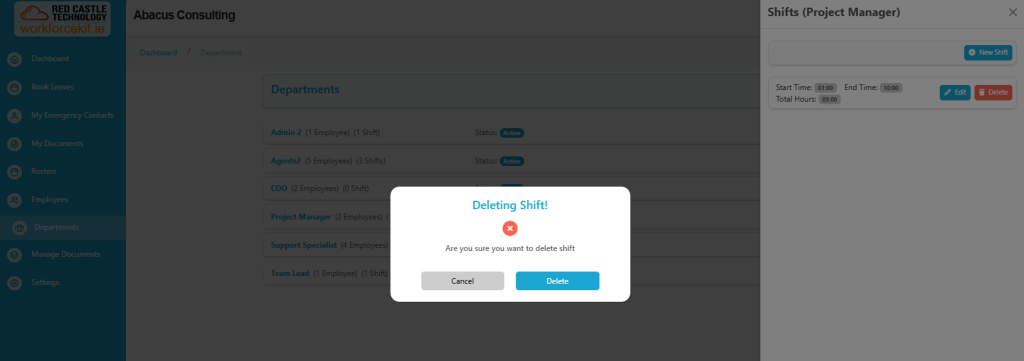
When the user clicks the “Delete” button, a pop-up will appear with the message: “Are you sure you want to delete this shift?” If the user confirms by clicking “Delete,” the shift will be permanently removed. Alternatively, the user can cancel the process by clicking “Cancel.”
Note: In this section, clicking the Shift button will open the modal. This section will be pre-filtered to display employees belonging to the selected department, allowing the user to view relevant employee details efficiently.
As we can see the filter is already applied on this section to view the specific employee details efficiently.