Document Overview
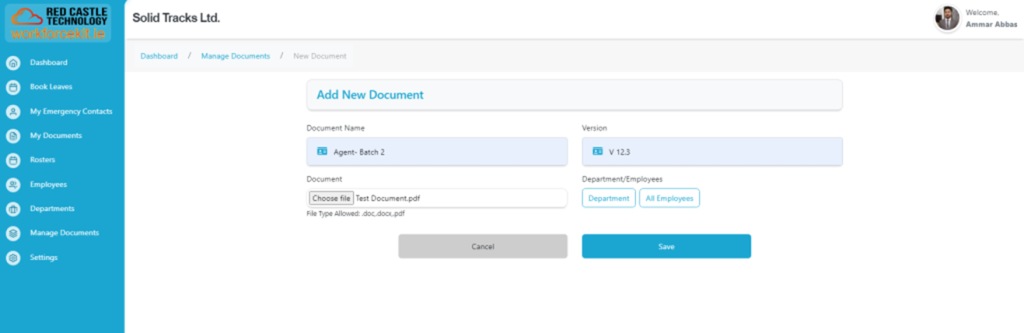
This structured presentation offers a comprehensive overview of document details, facilitating efficient document management and tracking.
The initial page presents essential information including the following:
- Document Name: Identifies the name of each document.
- Version: Indicates the version of the document.
- Assigned to: Specifies the individual or entity to whom the document is assigned.
- Assigned by: Identifies the individual or entity who assigned the document.
- Assigned On: Displays the date when the document was assigned.
Within this dedicated section, users can efficiently manage their documents.
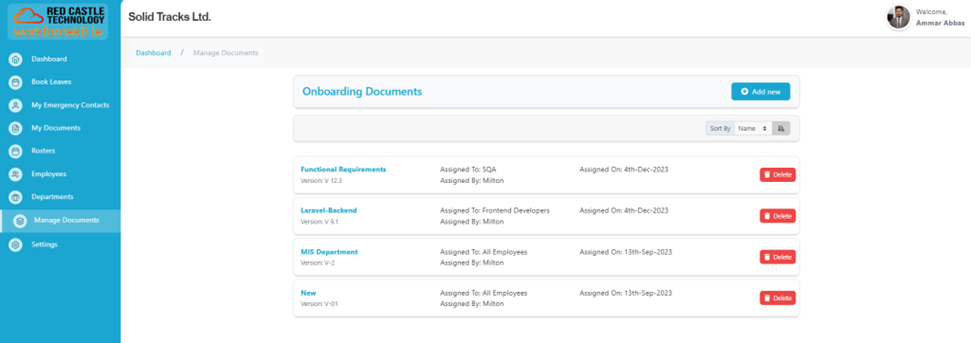
To delete a document, simply locate the red “Delete” button situated in the top-right corner of the specific document. When you click on it, a confirmation pop-up will appear, ensuring that the action is intentional. If you proceed by selecting “Delete,” the document will be permanently removed. If you decide to retain the document, just click “Cancel,” and no changes will be made. For a more comprehensive understanding, please refer to the screencast provided below.
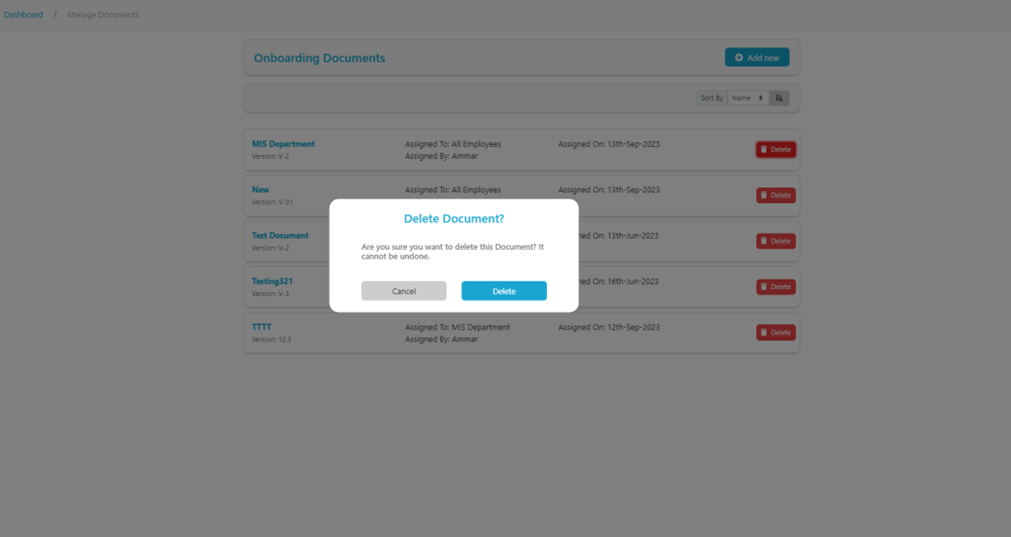
Adding a New Document
This section empowers users to seamlessly upload new documents with ease. Users can input essential details such as the “Document Name,” “Version,” and select the file by clicking on “Choose File.” Additionally, users can effortlessly allocate the document to an individual employee or an entire department, ensuring streamlined document distribution and management.